Anyone who runs an educational site, whether it explains physics formulas, exam tips or study methods, eventually asks the same question about traffic: where do my pages actually sit on Google? Advertising teams ask it too, because a page that already ranks well may not need paid support, while a page stuck on page three might. This FAQ style guide answers the questions people most often raise about keyword tracking, using what ServiceHub247 publishes on its public pages, read on 13 November 2026.
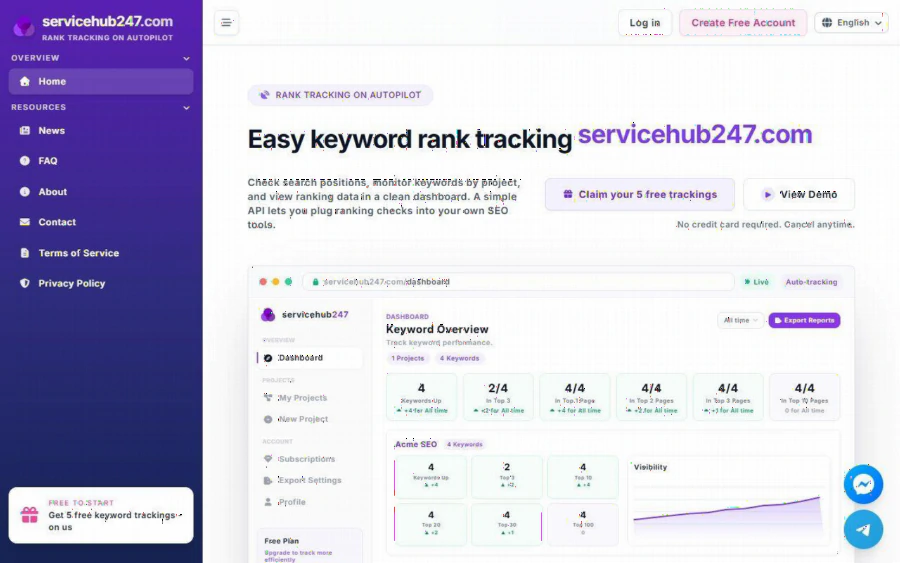
ServiceHub247 homepage with the headline about easy keyword rank tracking, a button for five free trackings and a demo dashboard
What does a rank tracker actually do?
A rank tracker records the position of a page for a chosen keyword in a chosen region, then repeats the check so you can see movement. Instead of typing a search every morning and guessing, you look at one dashboard. ServiceHub247 describes itself as a tool to check search positions, monitor keywords by project and view ranking data in a clean dashboard, with a simple API for plugging checks into your own SEO tools.
Each project has a URL, a keyword list and a region. The demo on the homepage shows a sample project called Acme SEO with four keywords and six summary cards: Keywords Up, Top 3, Top 10, Top 20, Top 30 and Top 100, next to a Visibility chart. The demo is sample data, not a real customer, so treat it as a picture of the layout rather than a promise of results.
Who is it for, and who should skip it?
The site names SEO specialists, marketers, freelancers and agencies that manage several projects. A small educational site owner fits too, mostly because the free plan is enough to try the habit of tracking.
It is probably not the right pick if you need a huge keyword database, competitor research or a full suite with content tools. ServiceHub247 focuses on tracking positions and reporting them. If your question is "which keywords should I target next", you will need a research tool alongside it. That is a limit, not a flaw, but it is better to know it before signing up.
What does it cost?
Pricing sits on the homepage under All Plans, and there is no separate pricing page. As listed on 13 November 2026:
| Plan | Price | Keywords | Checks |
|---|---|---|---|
| Free | $0 forever | 5 | Weekly |
| Lite Weekly | $5.90 per month | 30 | Weekly |
| Standard Weekly | $7.90 per month (listed at $11) | 50 | Weekly |
| Lite Daily | $21.90 per month | 30 | Daily |
| Standard Daily | $29.90 per month (listed at $46) | 50 | Daily |
| Enterprise | Custom quote | Custom | Custom |
The site says no credit card is required to start, and paid plans renew automatically through Stripe with cancellation available at any time. Paid plans add priority support and URL specific tracking. Prices and discounts can change, so check the page before you decide.
For a site that wants to follow a handful of important pages, the free plan's five keywords and the $5.90 weekly plan are the realistic entry points. Daily checks cost roughly four times as much for the same 30 keywords, so ask whether your keywords really move fast enough to justify that. For most evergreen educational content, weekly is usually enough, and spikes after a Google update are the exception.
Why does the tracker disagree with what I see in Google?
This is the question most worth reading about, and ServiceHub247's own FAQ section covers it directly. Its guides include one on the case where Google shows your site but the tracker says there is no ranking, and another comparing the tool with Google Search Console and when to trust which. The FAQ page says the two systems measure differently, so positions often do not match exactly.
The practical reasons are easy to picture. Search results differ by region, device and personalization, so your own search from a laptop at home is a poor yardstick. A tracker uses a fixed region and a fixed method each time. That makes it good at one thing: showing whether a position is going up or down over weeks, even if the absolute number differs from what you personally see. The site's guides are titles and summaries on the FAQ page, and I did not see a statement of the exact crawl method, so do not assume more than that.
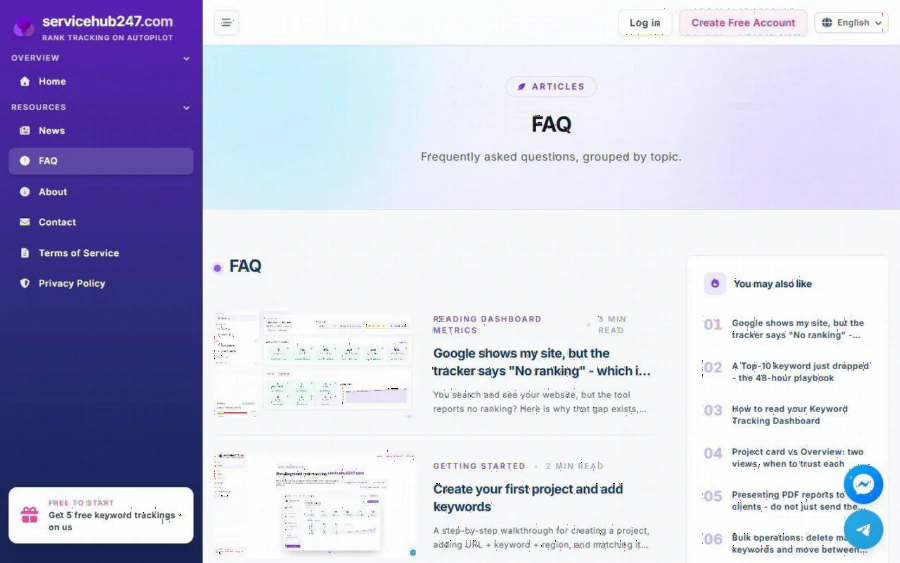
ServiceHub247 FAQ page listing guides on reading dashboard metrics and creating a first project
How do I read the dashboard without misreading it?
The FAQ lists guides on the six Overview cards, the delta arrows, the Visibility chart and the keyword detail page. Two points stand out for newcomers.
First, the delta badges compare the latest position with the first position in the window you select. The window can be yesterday, this week, last month, six months, last year or all time. A green arrow under a short window and a red one under a long window can both be correct, so choose the timeframe that matches your question.
Second, the Visibility chart uses an inverted vertical axis, because a lower position number is better. A line moving up means your pages are moving toward the top of the results. Reading it the wrong way round is an easy mistake, which is exactly why the guides exist.
The tool also sends a daily digest each morning with the rankings that moved in the last 24 hours, split into UP, DOWN, NEW and LOST sections. For a small team, that digest can replace opening the dashboard every day.
How would a small site start, step by step?
Here is an illustration, not a real customer. Imagine an owner of a study site about high school physics who wants to watch eight pages: a few formula explainers and two exam revision guides.
1. Create a free account through the free rank tracking plan on ServiceHub247, which needs no credit card according to the homepage.
2. Create one project and add the five most important keyword and URL pairs, picking the region where most students search.
3. Wait for the first data. The site notes that new keywords can take five to ten minutes to show results.
4. After a few weeks, review the Top 10 and Top 20 cards and the digest. Move keywords that sit just off page one into your content plan.
5. If the five slots feel tight, look at the weekly plans before the daily ones.
The site also publishes a guide on a 30 minute weekly review every Monday, which fits this routine well, and one on when to upgrade and when not to. For the wider library, see the guides on reading rank data.
What are the honest limits?
Be clear about what a tracker cannot do. It will not make a page rank, and it will not tell you why a page dropped without some thinking on your side. The Free plan covers only five keywords checked weekly, which is a trial rather than a full monitoring setup. The homepage testimonials repeat and are not independently verified on the page, so I would not lean on them when deciding.
For advertising decisions, the useful angle is simple. If a keyword has held a top position for weeks, a paid campaign on the same term may be wasting money. If it keeps slipping, the tracker gives you a dated record to justify a change. Either way, you are deciding with a log instead of a hunch.
Quick answers
- Is there a free plan? Yes, $0 forever with 5 keywords checked weekly.
- Do I need a card to start? The homepage says no.
- Can I export reports? The site lists PDF and CSV exports.
- Is there an API? Yes, the homepage describes a simple API.
- Does it replace Google Search Console? No, the FAQ treats them as different tools with different numbers.
If you want to see for yourself, open the free plan, add five keywords and compare the first month of data with your own notes. That small test costs nothing and will answer the question better than any article can.